
Permissions and divisions: access scoped to each team’s branch
Nine fixed roles and a division tree for each company. Menus and actions follow the user’s role.
14 days free · €0 · no credit card · free plan for up to 25 assets afterwards
Sound familiar?
- A store or department manager sees all company assets, tickets and work orders
- Separate views previously required splitting a customer into multiple companies
- Colleagues see actions they cannot use
- Audit preparation requires manually gathering everyone’s permissions
How ServiceLeaf helps
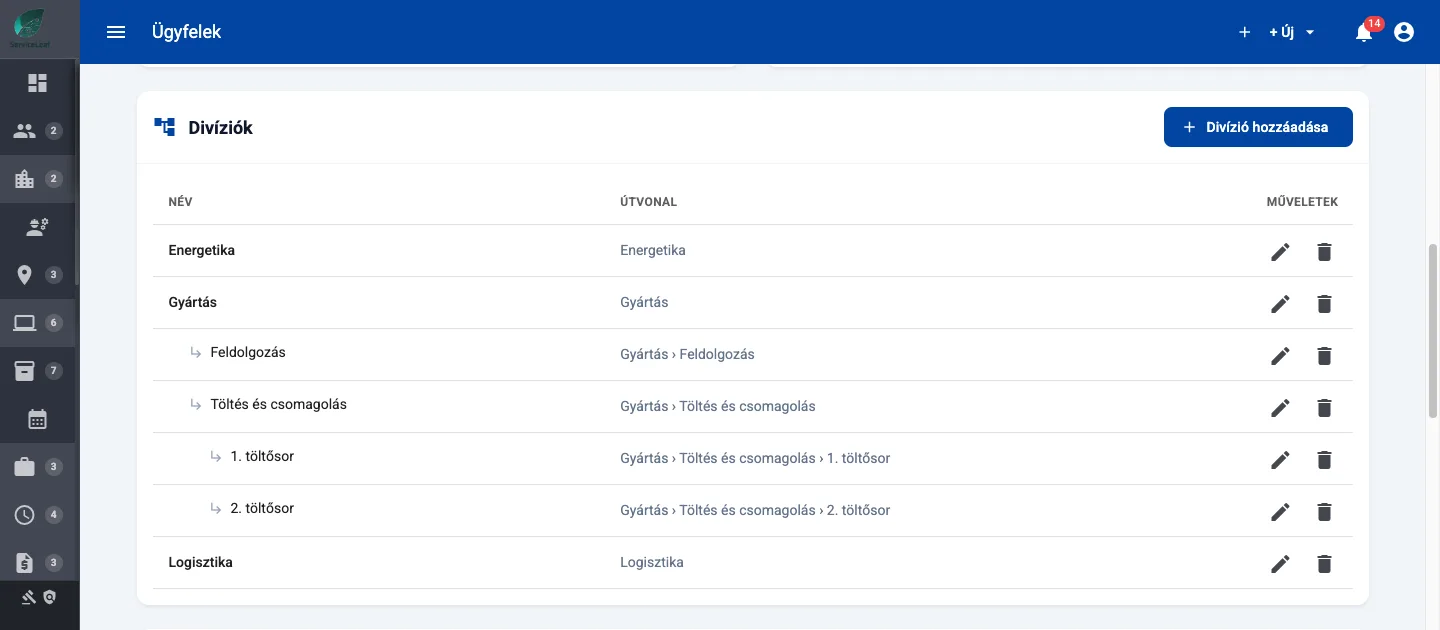
- A division tree for each company, such as region → store → department
- Division scope only narrows access; it never grants additional role permissions
- Menus and buttons reflect the actions each role can use
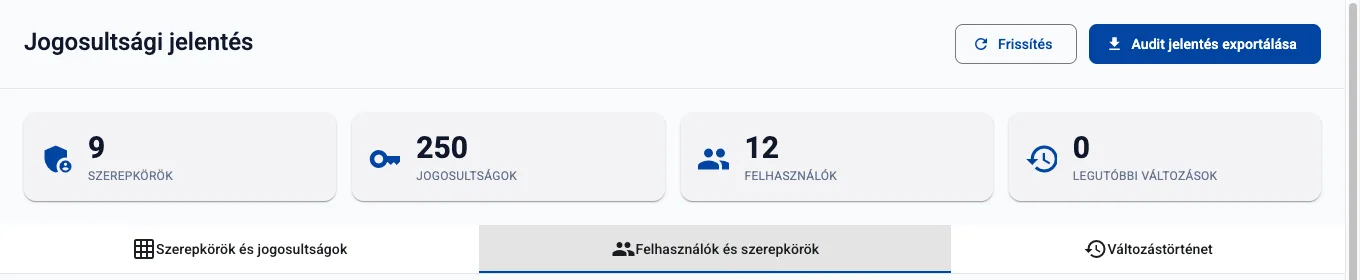
- Export permissions reports as PDF or CSV
See it in ServiceLeaf
What can it do?
Nine fixed roles
Provider administrator, manager, support and viewer; customer administrator, manager, user and viewer; subcontractor.
Company division trees
Divide your own company and customer companies into branches. Manage your tree in administration settings and customer trees on company records.
Visibility by division
Assigned users see their own branch and company-wide records. Administrators and users without a division see all records allowed by their role.
Gradual rollout
Division filtering applies after an administrator builds the tree and assigns users.
Automatic division assignment
New tickets and work orders receive a division automatically. Lists include division filters and history records changes.
Two-factor sign-in
Use authenticator-app TOTP verification with recovery codes.
Company Microsoft accounts
Colleagues can sign in through Microsoft Entra ID. ServiceLeaf roles still determine what they can access.
Single sign-on with Microsoft Entra ID
- An account administrator configures single sign-on under administration settings
- Save the connection disabled, test it with a real Microsoft account, then enable it after a successful test
- Only users approved in the company’s Microsoft Entra application can sign in
- ServiceLeaf two-factor protection still applies after Microsoft sign-in; password sign-in remains available
Permissions report
- Administrators can open the Security Audit page in administration settings
- Review the roles and permissions matrix, user-role assignments and change history
- Export as PDF or CSV to support NIS2 audit preparation
Read more on the blog: NIS2 and maintenance: what can a permissions report show?
fixed roles
Related features
Asset Management
Keep every machine, piece of equipment and part in one place, with its history, warranty and documents.
Reports and Analytics
See maintenance costs, recurring faults and opportunities to improve, using recorded data.
Subcontractors
Assign work orders or tickets to partner companies. Partners work with prices hidden in Service Provider business mode.
Ready to digitise your maintenance?
Try it free for 14 days, or book a live demo.
14 days free · €0 · no credit card · free plan for up to 25 assets afterwards